Showing posts with label Function Modules. Show all posts

Function Module to get file extension name

In this tutorial, I will discuss with you some standard SAP Function Modules that can be used to get the extension name of a given file such as PDF, DOC, XLS etc.

The first one that I want to show is the FM SCTS_EXE_FILE. It has two input parameters and one output which is the extension name. As seen from this screenshot below. I tested a file having two periods(.) to check if the FM can still recognize the extension name of a given file. As expected, it outputs the correct extension name. So our mark for this FM, PASSED.


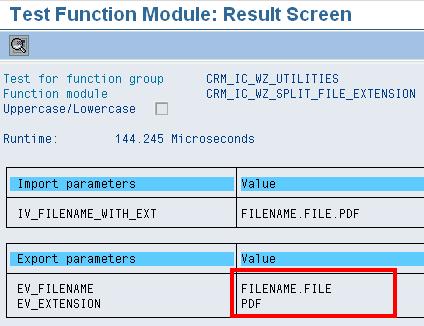
The second FM is CRM_IC_WZ_UTILITIES. Just like the first FM above, I tested the same having two periods on the filename. This is to ensure that it takes the correct extension name once processing is done. Voila, as seen below, PDF was taken from the input name filename.file.pdf. So our mark for this FM, PASSED.


In this third FM, PC_SPLIT_COMPLETE_FILENAME, it has two input parameters and five outputs. This time, my test data failed. Using the same file like the one above, nothing was returned as output as seen below. I did not debug anymore this FM to know where it commits the error. But one thing I am sure, it can not be used in this case having two periods in a filename. So our mark for this FM, FAILED.


On this last FM, i used the same data, filename.file.pdf. Amazingly, it returns an output unlike the third FM which returns nothing. But as can be seen below, the extension name that it returns is a part of the filename itself and not the extension name. It takes the first period of a filename whereas it must take the rightmost one. So our mark for this FM, FAILED.


I hope I shared to you some insights which FM can be used if your requirement is to take the extension name of a given filename. Enjoy reading my blog. :)

How to debug smartform in production system?

Have you encountered now a logical bug in your smartform which only appears when transported in the production system? Then we cannot replicate the same issue in our development box. So in this case, we have no option but to debug the form directly in production system, right? But we all know that setting a debugging point in the smartform is prohibited in this system. So do you have any idea to debug it?

In this tutorial, I will discuss a simple technique on how to debug the form even on the production system without any interference on the actual code. Just follow the following steps detailed below.

Steps:
1.Run tcode Smartform and open your form. If you are not authorized in your production system to open your form, go back into your development system. 
 

2. Once your form is open, go to main menu, click on Environment-->Function Module Name.
 

3. In this screenshot, you will see the function name of this form. Take note that every smartform you created, a function name is generated unlike in sapscript that no FM is created.
 

4. So in the previous steps, we get the name of the function module generated for this form. Our next goal is to determine which part of the form will it going to stop. So in my sample as you see, I need to debug the program lines under %CODE1. Please take note the name of the program lines since we will use this later.
 

5. After getting the function module name of the form and determining the part where we will going to debug, we are ready to set the breakpoint now. Go to SE37 and input the FM name generated above. Then click display the button. Perform this procedure in your production system. If you dont have any access in SE37, then ask your Basis people to provide you.
 

6. Then on the toolbar, select the find button with plus sign. 
 

7. Then on this screen, input the name of the program lines you want to debug. Then select the option "In main program". Then click ok.
 

8. In this screen, it will show what lines contains your search word. Just double click it so you will be directed in the actual code.
 

9. Finally, you will see now your code and you can put a breakpoint just like below. Run your program again and debugging mode will then be prompted.


Enjoy reading... Keep on visiting my blogs. :)

How to create a function module?

Function Modules or simply known as FMs are procedures that are created and defined in Function Builder or via transaction code SE37. They are contained in a special ABAP programs known as function groups.

In this tutorial, I will discuss how to create your first function module and how to integrate it to your ABAP program.

STEPS:
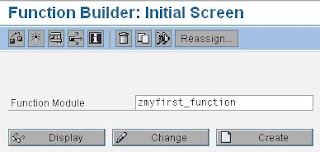
1. Go to SE37, function builder screen. Type the name of your function module. As always, it must begin with a Z* or Y*. Then click the Create button.

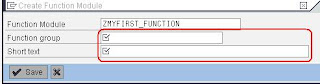
2. On this next screen, enter name of the function group and a short text for your function module. Be descriptive enough. If you don’t have any function group, click this link to create your own.  Hit the save button afterwards.

3. So in this screenshot below, you can see different tabs such as Attributes, Import, Export Changing, Tables, Exceptions and Source code. Along the way, you will learn how to use each tabs. But in this tutorial I created, to make it simplify, I use only three tabs which are the most necessary tabs. Because what I want to share is the principle in creating your first function module.


4. The first tab to fill up with parameters is the Import tab. In my sample, I added one input parameter and I called it input_param with a type of integer. Don’t be confused that it is limited to only one parameter. You can add as many as you want. But since this is a simple tutorial as I said, I make it simple as possible.
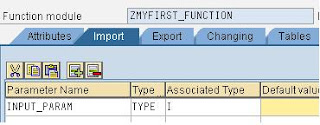

By the way, don’t be misled also when after creating your FM then you will call it into your ABAP program, the IMPORT title might be confusing (it is also true to Export). Take a steady look with this screenshot below and to the screenshot above and notice the difference.
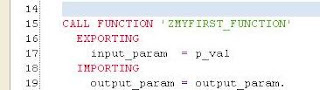


Did you spot the difference? In the first screenshot, the tab title is IMPORT while the parameter is input_param. But on the second screenshot, the title now is EXPORTING and the parameter is still input_param. As I said don’t be confused with these titles. Take note that your main ABAP program is different to your Function module. They are two different programs. So if we add FMs to our ABAP program, all input parameters are exported from your main ABAP program and imported into your function module for further processing.

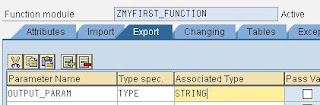
5. After you fill up your import tab, go to Export tab as this is the returning value. So when this FM is called in an ABAP program, the parameter indicated in this tab will be the returning value. In my sample, I added one export parameter and I called it output_param with a type of string. Also, you can add as many as you want. But since this is a simple tutorial as I said, I make it simple as possible.

6. The last tab I used in this tutorial is the Source code tab. As the tab title implies, you will write here your ABAP codes. So in my sample below, I write a sample code which determines if an input value is a positive number or not. I will not elaborate further on how to create logic here. Its up to you how to do or implement your program logic in this source code tab.
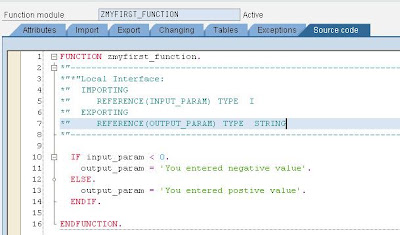

7. After you are done with your source code, click save and activate buttons on the toolbar. If errors persists, check your source code. It must be activated before it can be used in your main ABAP program.

8. So in this next step, I will show how you will call your newly created FM into your ABAP program. In my sample below, I created a new program and I called it as zfirst_fxprog. Its up to you how you will call your program too. Inside this program, I added one parameter which will serves as my input parameter. Below it, I call the FM, ZMYFIRST_FUNCTION. Then I will display the returning value using the WRITE keyword. By the way, a simple way to add your FM is by clicking the button PATTERN in the toolbar. Just enter the name of your function module and it will be added automatically into your program.


9. Save and activate your program. Try to run and test if its working as expected. It must display this first screen. Try to input a positive number.
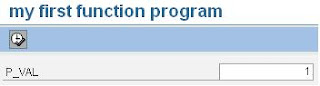

10. The result would now be like this one below, showing the message you entered in your function module.
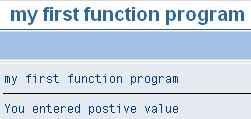
I hope I make your day another day with smiles. :) Enjoy reading my posts.

How to create a function group?

Without a function group, Function module cannot exist. In short, Function Group are containers for function modules but not executable. So in this tutorial, I will discuss how to create your first function group to be used for your function modules.

STEPS:
1.Go to transaction code SE37. On the main menu, click Goto->Function Groups-> Create Group


2. In this screen, input a descriptive text for your function group. Then hit the save button. Just save it as local TMP.


3. After you save it to your local TMP, it will display a success message such as this one.


4. Then go to tcode SE80. From the repository browser, select function group. Then enter the name of your function group newly created. Hit the glass button at the right to display the content. Once displayed, right click the name of the function group to show the context menu. Finally, select activate as shown below.


Enjoy reading :)...

How to download the data structure of tables in SE11?

Good morning people around the world. Its me again doing some blogs. Sharing to you some tips and tricks in the SAP world. Well, before I s...